Email was never built for large files. The protocols underneath it date to an era when "big" meant a few kilobytes, and while the limit has crept upward over the decades, it hasn't kept pace with how we actually work. Gmail and Outlook both cap attachments at around 25 MB. Many corporate mail servers are stricter — 10 MB, sometimes less — and the receiving server can bounce a file even when yours accepted it. You won't always get a clear error. The file just doesn't arrive.
The fix is always the same: don't attach the file, send a link to it instead. Here are the three fastest ways to do that.
01 Your three routes around it
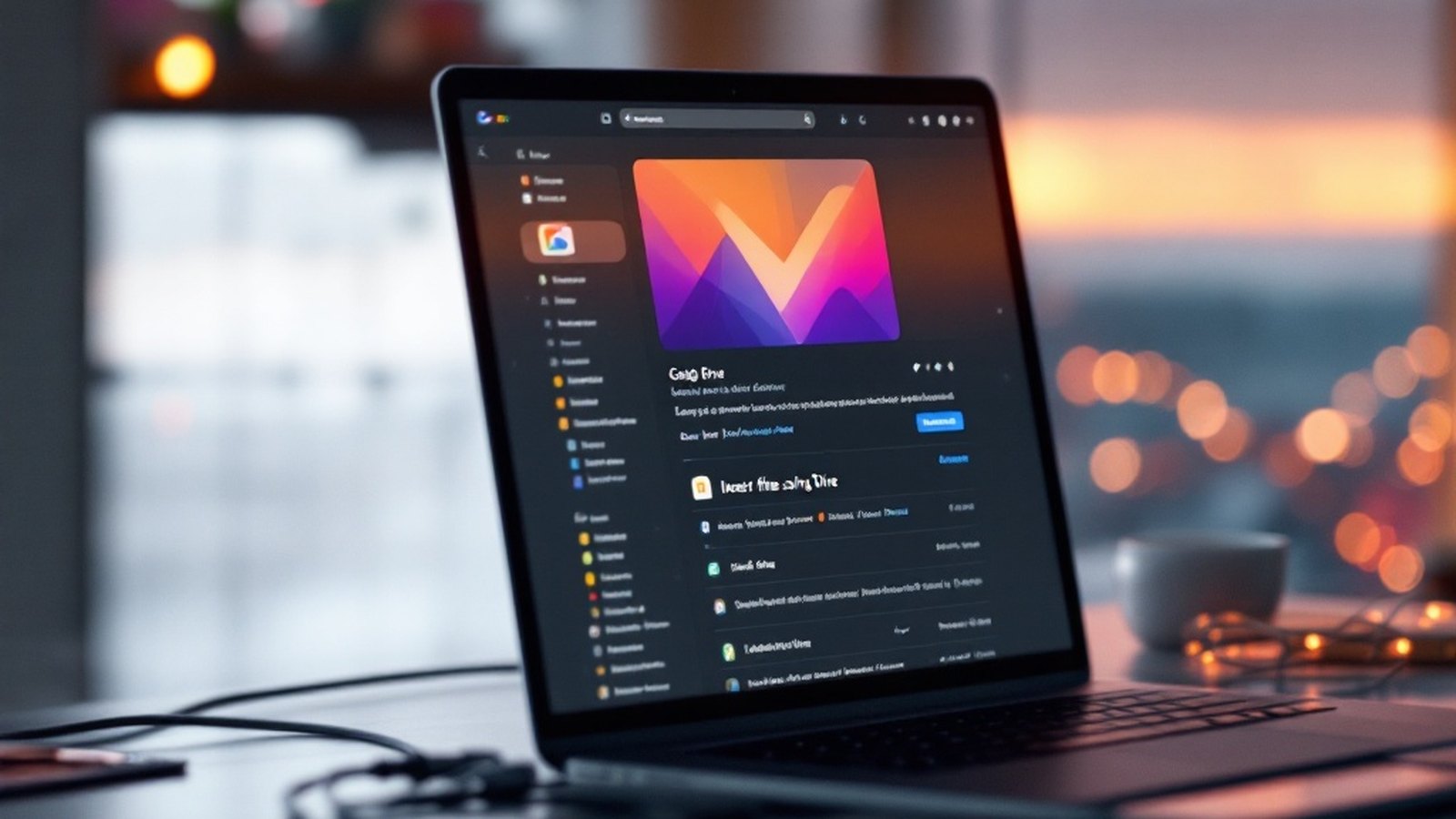
Use Gmail's built-in Drive insertion. If you're on Gmail, this is already done for you. When you attach a file over 25 MB, Gmail automatically converts it to a Google Drive link rather than a true attachment. For anything under the limit, you can still choose "Insert files using Drive" manually. The recipient gets a link, not a blob of encoded data clogging a mail server. Outlook does the same with OneDrive — attach a large file and it offers to upload it and send a share link instead. If you're already in either ecosystem, lean on this; it costs nothing and requires no new accounts.
Send a cloud share link. If you use Dropbox, iCloud Drive, Proton Drive, or similar, upload the file and copy the share link, then paste it into your email. Most services let you set a password or a link expiry — worth doing if the file is sensitive. Zero-knowledge services like Proton Drive mean not even the provider can see what you're sending, which matters for contracts, medical documents, or anything else you'd rather keep private.
Use a one-off transfer service. For files you don't want to leave permanently in a cloud folder, WeTransfer is the classic answer: no account needed, upload, get a link, send it, done. The free tier handles a few gigabytes at a time and files expire after a few days, which is often exactly what you want — no permanent copy floating around. Alternatives like Send Anywhere work similarly, and offer a direct device-to-device mode.
Any of these takes less time than wondering why your attachment bounced. Pick the one that matches where your file already lives, and stop fighting the 25 MB wall.