Syncing your Documents folder to Google Drive feels responsible. It isn't enough. If your laptop dies, gets stolen, or gets hit by ransomware, a sync folder gives you your files back — but not your apps, your settings, your email signatures, your browser profiles, or the operating system you've spent years quietly customising. A real backup captures the whole machine. It's less complicated than it sounds.
01 Image backup vs file backup — know the difference
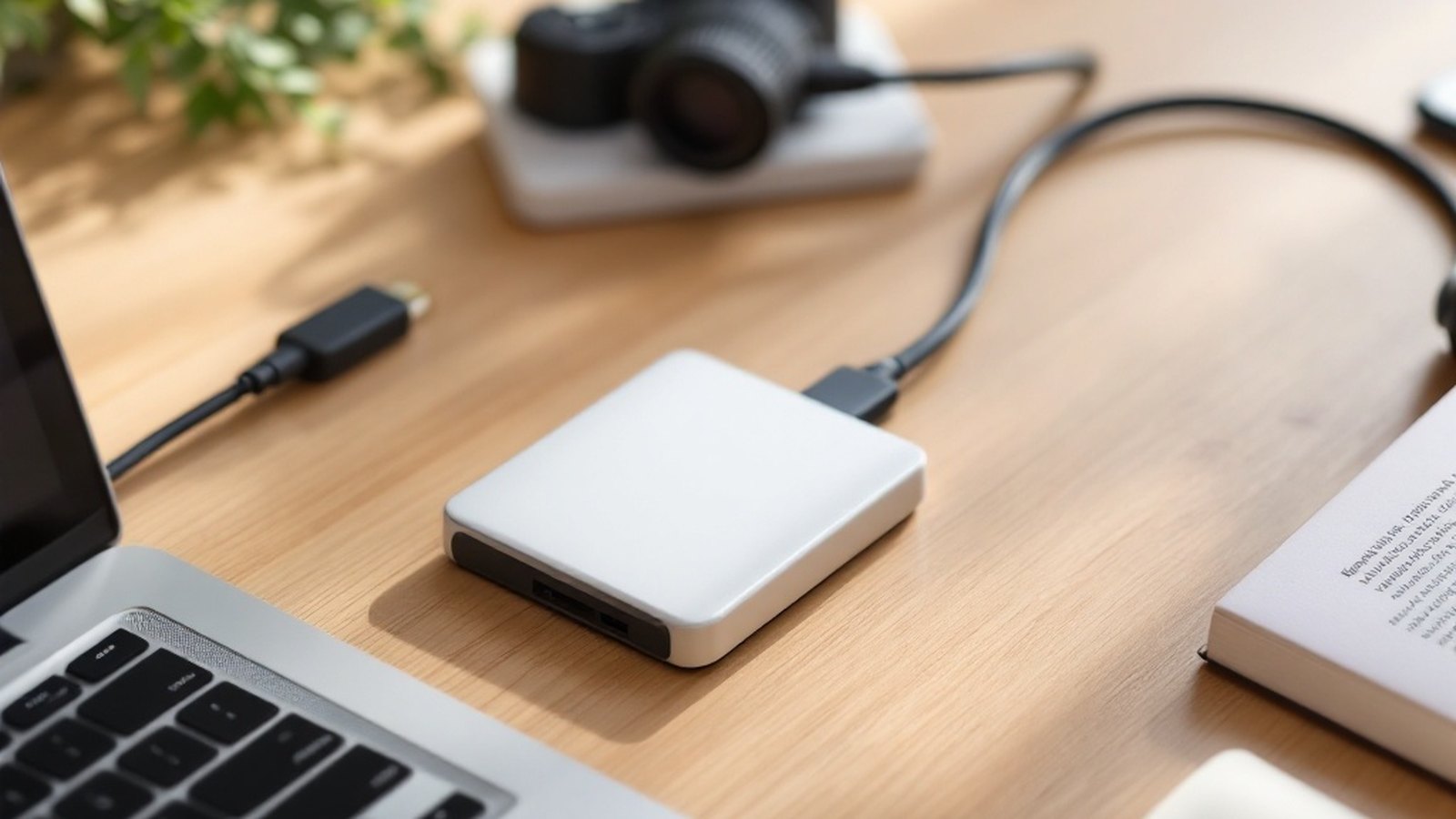
There are two distinct things a backup can be. A file backup copies your documents, photos, music and other data — the stuff you made. A disk image (or system image) copies everything: the OS, every installed application, every preference and licence key, the lot. Restore from an image and your computer comes back exactly as you left it, down to the desktop wallpaper.
For most people, the smart play is both: a file backup for the everyday "I accidentally deleted that spreadsheet" rescue, and an image backup for the catastrophic "the drive is completely dead" recovery.
On a Mac, Time Machine does the file-backup job beautifully. Plug in an external drive, point Time Machine at it, and it starts making hourly snapshots automatically — keeping a rolling history so you can step back to a file as it existed weeks ago. For a full image, macOS can create one through Disk Utility, though the more practical modern approach is a third-party tool like Carbon Copy Cloner or SuperDuper, which make a bootable clone of your whole drive.
On Windows, File History covers the file-backup side (it watches your libraries and key folders). For a system image, Windows still ships with a built-in image tool — look for "Backup and Restore (Windows 7)" in the Control Panel, which sounds ancient but works fine on current Windows. Third-party options like Macrium Reflect offer more control and scheduling, and a paid licence that covers most home users.
02 The off-site copy — the one people skip
Here's the gap in most people's setup: everything is in one place. Your laptop and your backup drive both live on your desk. A fire, a flood, or a burglary takes them together.
The 3-2-1 rule fixes this: three copies of your data, on two different kinds of storage, with one copy off-site. That third copy doesn't have to be complicated. It can be a second external drive kept at a friend's house and swapped every month or two. It can be a cloud backup service — Backblaze is the standout here, offering unlimited computer backup for a modest monthly fee; it quietly runs in the background and retains deleted files for an extended period. iDrive and Acronis Cyber Protect are solid alternatives with their own pricing models.
Cloud storage (Google Drive, Dropbox, OneDrive) is not the same thing. Those sync your files; they don't image your machine, and they mirror deletions and ransomware encryption just as faithfully as they mirror everything else. A dedicated cloud backup service versions your files independently of what happens to the originals.
03 Test the restore — seriously, test it
A backup you've never tested is a guess, not a guarantee. Once a year at minimum, pick a few files at random and actually restore them. Open the restored files; check they're intact. If you're using an image backup, boot from it on a spare machine or a virtual machine if you can — just to confirm the image is healthy.
Time Machine makes this easy: hold Option when clicking the menu bar icon and choose "Browse Other Backup Disks." Backblaze lets you restore files through a web browser or request a physical drive shipped to you, which is worth understanding before you need it at 11pm on a Sunday.
The reassuring truth is that once the system is running, you barely think about it. Time Machine or File History does its quiet hourly work; Backblaze ticks along in the background. The setup takes an afternoon. The peace of mind is indefinite — provided you actually press start.
Named in this guide
Time Machine
Apple's built-in Mac backup tool, introduced with Mac OS X Leopard
File History
Windows built-in file backup feature
Backblaze
US cloud backup provider known for unlimited-storage personal backup plans
Carbon Copy Cloner
Mac third-party tool for bootable disk clones
Macrium Reflect
Windows third-party imaging and backup software
iDrive
cloud backup service offering cross-device and machine backup